
 Help keep Byter free
See your internet speed in the menu bar or taskbar
Byter puts your live internet speed in the Mac menu bar or the Windows taskbar, updated every second. Click it for a live speed dial and your speed history.
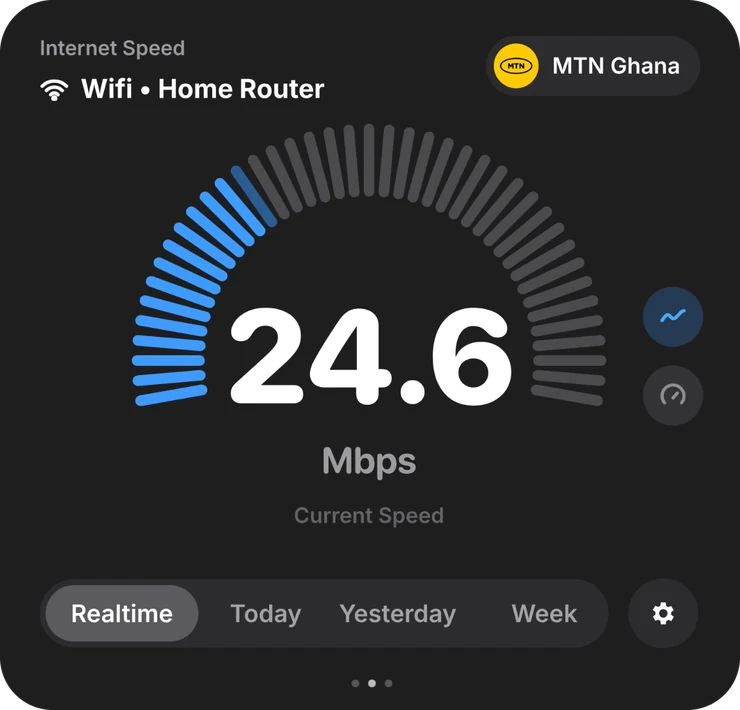
Is the video call stuttering because of the Wi‑Fi, or because something is downloading in the background? A speed reading you can always see answers that at a glance.
What you get
Live speed, always visible
In the menu bar or taskbar, or your data used if you prefer.
A live dial
Your current speed and network, one click away.
Speed history
Spot the times of day your connection slows down.
One-click speed test
When you want a proper measurement.
Provider details
Your provider, IP and location in one click.
Uses no data
Live speed reads counters your computer already keeps.
Mac and Windows
Byter for Mac
- System
- macOS 14 Sonoma or later
- Chips
- Apple silicon and Intel
- Lives in
- The menu bar
- Price
- Free
Byter for Windows
- System
- Windows 10 and 11
- Chips
- 64-bit (x64)
- Lives in
- The taskbar (system tray)
- Price
- Free
Set it up in a minute
- 1
Download
Get Byter for Mac or Windows. It’s free.
- 2
Open it
On a Mac, drag it to Applications. On Windows, install it from the Microsoft Store.
- 3
That’s it
Byter appears in your menu bar or taskbar and starts counting. No account.
- 4
Click any time
See your usage, speed and networks in one click.
What Byter doesn’t do
Byter counts how much data goes through each network. It doesn’t show usage per app and it doesn’t block apps from using the internet. That’s on purpose: it never looks inside your traffic. For per-app numbers, Activity Monitor on a Mac and Task Manager or Settings on Windows can show some of that.
Questions
How do I show internet speed in the Mac menu bar?
macOS can’t do it on its own. Install Byter and choose to show your live speed in the menu bar.
How do I show network speed on the Windows taskbar?
Windows doesn’t show it by default. Byter adds your live speed to the taskbar’s system tray.
Does showing live speed use data?
No. Byter reads the counters your computer already keeps. Only a speed test you start yourself uses data.
More about Byter
- Data usage monitorByter is a free data usage monitor for Mac and Windows. See how much data each Wi‑Fi network and hotspot uses, with daily, weekly and monthly history.
- Hotspot data trackerSee exactly how much of your phone’s hotspot data your laptop uses. Byter tracks hotspot usage separately from Wi‑Fi, free on Mac and Windows.
- Speed test appTest your download speed, upload speed and latency from the menu bar or taskbar. Byter is a free speed test app for Mac and Windows.
- Usage per Wi‑Fi networkByter splits your data usage by Wi‑Fi network and hotspot, so you know exactly which connection used what. Free for Mac and Windows.
- GlassWire alternativeLooking for a GlassWire alternative to track data usage? Byter is a free, lightweight tray app for Windows and Mac that tracks data per network.
- TripMode alternativeWant to know how much hotspot data your laptop uses? Byter is a free alternative to TripMode for tracking data on Mac and Windows (no app blocking).
Looking for tips instead? Read the guides.

See where your data goes
Free for Mac and Windows. No ads, no account.