
 Help keep Byter free
A one-click internet speed test for Mac and Windows
Byter runs a speed test from your menu bar or taskbar in one click and shows your download speed, upload speed and latency. No browser tab, no ads.
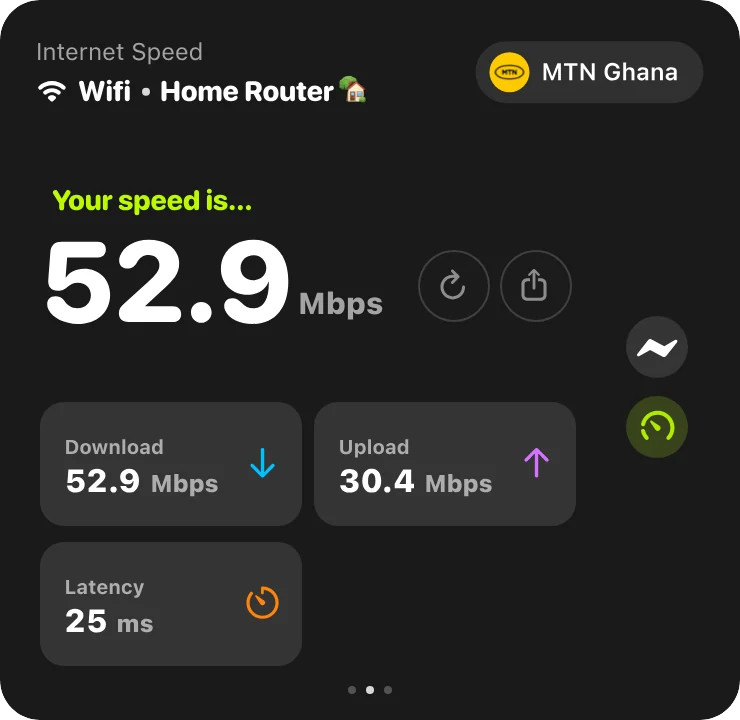
Speed test websites work, but they’re one more tab, often full of ads, and easy to forget. Byter keeps a speed test one click away, next to your live speed and data usage.
What you get
Download, upload, latency
All three in one result.
Quick or full test
Choose how much data a test is allowed to use.
Shareable result
Handy when you’re complaining to your provider.
Done notification
Carry on working while it runs.
How much data does a speed test use?
A full speed test can use tens to hundreds of megabytes on a fast connection, because it downloads and uploads as much as it can for a few seconds. On a hotspot, use the quick test. More in how to test your internet speed.
Mac and Windows
Byter for Mac
- System
- macOS 14 Sonoma or later
- Chips
- Apple silicon and Intel
- Lives in
- The menu bar
- Price
- Free
Byter for Windows
- System
- Windows 10 and 11
- Chips
- 64-bit (x64)
- Lives in
- The taskbar (system tray)
- Price
- Free
Set it up in a minute
- 1
Download
Get Byter for Mac or Windows. It’s free.
- 2
Open it
On a Mac, drag it to Applications. On Windows, install it from the Microsoft Store.
- 3
That’s it
Byter appears in your menu bar or taskbar and starts counting. No account.
- 4
Click any time
See your usage, speed and networks in one click.
What Byter doesn’t do
Byter counts how much data goes through each network. It doesn’t show usage per app and it doesn’t block apps from using the internet. That’s on purpose: it never looks inside your traffic. For per-app numbers, Activity Monitor on a Mac and Task Manager or Settings on Windows can show some of that.
Questions
What is a good internet speed?
For browsing and email, a few Mbps is enough. HD video needs about 5 Mbps, video calls about 2 to 4 Mbps each way, and 4K streaming around 25 Mbps.
What does latency (ping) mean?
It’s how long data takes to travel to a server and back, in milliseconds. Lower is better: under about 50 ms feels instant for calls and games.
Is the Byter speed test free?
Yes. Byter and its speed test are free on Mac and Windows.
More about Byter
- Data usage monitorByter is a free data usage monitor for Mac and Windows. See how much data each Wi‑Fi network and hotspot uses, with daily, weekly and monthly history.
- Hotspot data trackerSee exactly how much of your phone’s hotspot data your laptop uses. Byter tracks hotspot usage separately from Wi‑Fi, free on Mac and Windows.
- Network speed monitorByter shows your live download and upload speed in the Mac menu bar or Windows taskbar, with a live dial and speed history. Free.
- Usage per Wi‑Fi networkByter splits your data usage by Wi‑Fi network and hotspot, so you know exactly which connection used what. Free for Mac and Windows.
- GlassWire alternativeLooking for a GlassWire alternative to track data usage? Byter is a free, lightweight tray app for Windows and Mac that tracks data per network.
- TripMode alternativeWant to know how much hotspot data your laptop uses? Byter is a free alternative to TripMode for tracking data on Mac and Windows (no app blocking).
Looking for tips instead? Read the guides.

See where your data goes
Free for Mac and Windows. No ads, no account.